What Azure Virtual Desktop Actually Costs
Azure Virtual Desktop delivers a Windows desktop in a browser. That is genuinely what it does, and it works. The question is what it costs to keep it working.
The sticker price is not the price. Microsoft’s licensing stack for AVD runs roughly like this1:
- A Microsoft 365 licence that includes the Windows Enterprise entitlement — E3 or E5, or the equivalent Business Premium
- Azure compute underneath the desktop — a VM billed by the hour, or a reserved instance billed by the month
- Azure storage for the OS disk and the user profile
- Azure networking for the traffic between the desktop and everywhere else
- Optionally, Microsoft Entra ID P1 or P2 for conditional access policies
Windows 365 Cloud PC simplifies the billing into a flat per-user-per-month number, but the number is not small. A 2 vCPU / 8 GB / 128 GB configuration — which is a modest office desktop — is £35.60 per user per month2. Add a GPU and it jumps to £269.40 for the GPU Standard tier. Multiply by headcount and it is a real line item, every month, forever.
That is the product this post replaces.
What the Replacement Stack Looks Like
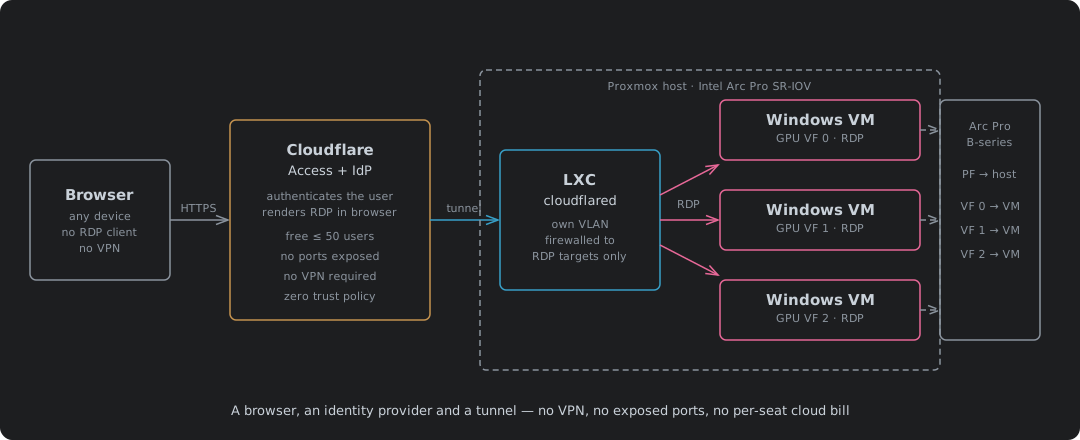
Three layers, each independent, none of them billed per seat:
The GPU layer is the Intel Arc Pro SR-IOV build from the previous post. A single Arc Pro card splits into hardware virtual functions through standard PCIe SR-IOV — no vGPU licence, no NVIDIA subscription. Each Windows VM gets its own VF and its own GPU-accelerated desktop. The card sets the seat count, not a licence server.
The access layer is Cloudflare Access with browser-rendered RDP. The user opens a URL in any browser, authenticates against your identity provider, and Cloudflare renders the RDP session directly in the browser tab. No RDP client installed. No VPN. No ports exposed to the internet. Access federates to any OAuth or OIDC provider — that includes on-prem providers like Keycloak or Authentik stacked on your existing Active Directory, whether that is Samba 4 AD or a Windows domain controller. The directory keeps doing what it already does: user accounts, group policy, domain-joined VMs. Keycloak or Authentik federates against it and adds the OAuth/OIDC and MFA layer that Cloudflare Access needs. The identity plane stays on your own hardware. No Entra ID subscription required. Cloudflare Access handles what happens after that: it controls what the authenticated user can reach on your network — which applications, which protocols, which hosts. The desktop is behind a Cloudflare tunnel and unreachable from anywhere except through the Access policy, and the policy decides both identity and scope.
The tunnel layer is a cloudflared process running in an LXC container on Proxmox, on its own VLAN — a /30 for IPv4 with its own dedicated IPv6 prefix, nothing else in the broadcast domain. The Proxmox firewall controls what the LXC can reach, and the answer is short: TCP 3389 to the desktop VMs and nowt else. If the tunnel endpoint is compromised, the blast radius is one container on an otherwise empty VLAN, and the only thing it can talk to is what the firewall already permits. That is a much smaller surface than a VPN concentrator that hands out a routed subnet.
Cloudflare Zero Trust is free for up to 50 users3. You pay from user 51. Azure Virtual Desktop charges from seat one.
The Architecture
The path a desktop session takes:
- The user opens
https://vdi.example.comin any browser, on any device - Cloudflare Access intercepts the request and redirects to your identity provider — Keycloak or Authentik federated against your Active Directory
- The OAuth provider validates the user’s identity against AD and handles MFA
- Access evaluates the policy — the provider confirmed who they are, Access decides what they can reach on your network
- Cloudflare establishes an RDP session through the tunnel to the target VM
- The RDP session is rendered in the browser — no client, no plugin, no download
- The tunnel terminates in an LXC container on the Proxmox host, on a locked-down VLAN
- The LXC forwards RDP to the Windows VM, which has a GPU virtual function from the Arc Pro card
At no point does the Windows VM have a public IP. At no point is port 3389 open to the internet. The only thing listening on the public internet is Cloudflare, and the only thing that gets past Cloudflare is a user who passed the Access policy.
The Tunnel Endpoint: An LXC on Its Own VLAN
The cloudflared process needs to run somewhere, and where you put it is a security decision.
Running it directly on the Proxmox host is the simplest option and the worst one. A tunnel endpoint that shares the host’s network namespace can reach everything the host can reach, which on a hypervisor is everything. A compromised tunnel becomes a pivot into the management plane.
Running it in a full VM is clean but heavy. A tunnel relay is a single Go binary that uses almost no CPU and a few hundred megabytes of RAM. Giving it a full kernel and a virtual disk is overkill.
An LXC container is the right shape. It gets its own network namespace, its own VLAN — a /30 IPv4 and a dedicated IPv6 prefix, nothing else sharing the broadcast domain — and its own firewall rules in the Proxmox firewall. It shares the host’s kernel but not its network stack. The firewall permits TCP 3389 to the desktop VMs, DNS to resolve them, and HTTPS outbound to Cloudflare’s edge. As such, even a compromised tunnel endpoint can only talk to the things it was already supposed to talk to — and the VLAN it sits on has no other residents to reach.
The LXC configuration, the Proxmox firewall rules for the VLAN, and the cloudflared tunnel setup are all in the next post.
How Cloudflare Access Fits Together
There are two halves to this. The OAuth provider — Keycloak or Authentik, federated against your Active Directory (Samba 4 or Windows) — handles identity validation and MFA. It proves the user is who they claim to be, using the same directory the VMs are domain-joined to. Cloudflare Access handles everything after that: what the authenticated user is allowed to reach, through which protocol, and how the session is rendered.
Cloudflare Access renders the RDP session directly in the browser. This is not a download or a plugin — Cloudflare’s edge runs a headless RDP client and streams the result as a canvas in the browser tab. The user sees a Windows desktop. The browser sees HTTPS to Cloudflare. The Windows VM sees an RDP connection from the cloudflared tunnel.
The Access application is a self-hosted app pointed at the tunnel’s RDP ingress. The Access policy is where the two halves meet. The OAuth provider has already confirmed the identity and passed the MFA challenge. Access takes that token and decides what to do with it — which application the user can reach, whether their device posture passes, whether their location is permitted. The provider says who. Access says what.
The tunnel creation, the ingress rules, the LXC configuration, the Proxmox firewall rules and the Access policy itself are all in the next post — this one sets out what the stack is and why it exists. The next one builds it.
What the User Sees
Cloudflare Access includes an App Launcher — a resource portal that lists every application the authenticated user is allowed to reach. After the user logs in through the OAuth provider, the portal shows them their available desktops, internal web apps, and any other tunnelled resources, all in one place. One URL, one login, and a tile for each thing they have access to. It is the landing page for the whole stack, not just RDP.
The user clicks a desktop tile, and gets a Windows desktop in a browser tab. No client, no plugin, no download. It works on whatever device they already own — a company laptop, a personal machine, a Chromebook, a tablet. That is the point. The system is built for businesses that let people use their own kit.
Clipboard, audio and multi-monitor are not supported through the browser-rendered session. That is by design, not by accident. Every one of those channels is a data exfiltration path. A clipboard that crosses the boundary moves files out. Audio capture moves conversations out. Multi-monitor with a local desktop beside the remote one makes drag-and-drop trivial. Cutting those channels means a user can work inside the desktop but cannot pull work out of it through a side channel. The Access policy controls who gets in. The browser rendering controls what gets out.
If the business needs clipboard or audio for a specific workflow, Cloudflare Access also supports a native RDP client through the tunnel — the same tunnel, the same policy, the same identity check. The native path gives full RDP features to the users who need them and keeps the browser path locked down for everyone else. Two access methods, one policy engine, one tunnel.
The Cost Comparison
A concrete example. One server, 42 GPU-accelerated desktops:
- A 64-core CPU with hyperthreading gives you 128 threads. Each VM gets 8 vCPUs — a proper desktop allocation, not a thin client. 42 × 8 = 336 vCPUs, which is well past 128 threads on paper. But this is VDI. Office desktops are idle most of the time. A user reading a document or typing an email is not loading 8 cores. Oversubscription is not a risk here, it is the design. Proxmox lets you allocate more vCPUs than physical threads because the scheduler knows most of them are sleeping. The CPU is sized for the peak, and the peak is a handful of users compiling or rendering at once, not all 42. This is not a shortcut — the cloud hyperscalers oversubscribe the same way. Every Azure VM you rent shares physical cores with other tenants on the same host. The performance model is identical. The difference is who owns the host.
- 12 GB of RAM per VM is a solid office desktop. 42 × 12 GB = 504 GB, plus 4 GB for Proxmox itself = 508 GB on paper. In practice KSM collapses the identical pages across those 42 Windows images, so the physical RAM needed is substantially less — but budget for 512 GB of DIMMs and let KSM hand you the headroom.
- Three dual Intel Arc Pro B60 cards in a board like the Supermicro H13SSL-NT. Each physical card presents two GPUs to the OS, so three cards give you 6 GPUs. Each GPU supports 7 SR-IOV virtual functions4. That is 42 GPU-accelerated desktops from three PCIe slots. The B60 lists at around $599–799 per card. The B70 is the bigger option at $949 launch for 32 GB and 4 virtual functions per GPU5 — fewer seats but more VRAM per seat.
Windows 365 Cloud PC for 42 users2:
Even without a GPU, the numbers are not small. The Basic tier — 2 vCPU, 4 GB, 128 GB — is £26.90/user/month. The Standard tier — 2 vCPU, 8 GB, 128 GB, which is a modest office desktop — is £35.60/user/month. For 42 users on Standard, that is £1,495.20/month, £17,942.40/year, before any of the extras below.
With a GPU it gets worse. The GPU Standard tier is £269.40/user/month. For 42 users, that is £11,314.80/month, £135,777.60/year.
Both tiers then add:
- Microsoft 365 licensing if you do not already have it
- Azure networking — ingress and egress are billed separately, and a desktop that streams to a browser is not light on egress
- Azure Backup or a third-party backup solution — the VM snapshots and profile storage are not backed up for free
- Public IPv4 addresses — Azure charges for every public IP attached to a resource, and the price has only gone up
- Azure’s underlying pricing is in USD, so GBP costs move with the exchange rate — a weak pound makes every line item more expensive and you have no control over either side of that
- The bill never stops. Year five costs the same as year one.
This stack for 42 users — the build cost:
- Supermicro H13SSL-NT motherboard: ~£700
- AMD EPYC 64-core CPU: ~£1,500
- 512 GB DDR5 ECC RDIMM (8 × 64 GB): ~£5,200
- Three dual B60 cards: ~£1,800
- Chassis, PSU, boot SSDs: ~£800
- Total hardware: roughly £10,000
Amortised over a five-year life, that is £2,000/year in capital cost. Add:
- Cloudflare Zero Trust: free for up to 50 users
- Windows 11 Enterprise VDI rights — Software Assurance on Pro upgrades to Enterprise which includes VDI access for up to four VMs per user, or licence through Microsoft 365 E3/E56
- Electricity — and this is worth putting a number on
The power budget at peak draw: a 64-core EPYC at 360W TDP, three dual B60 cards at 400W each (1,200W), 512 GB of RAM at roughly 80W, plus storage, fans and PSU losses at around 150W. That is approximately 1,800W at the wall under full load. VDI desktops are not under full load — office use is mostly idle CPU and light GPU, so a realistic average is closer to 1,000–1,200W. Call it 1,100W.
At 35p per kWh, 1.1 kW running 24/7 is:
- 1.1 × 24 × 365 = 9,636 kWh/year
- 9,636 × £0.35 = £3,373/year in electricity
So the total annual cost of this stack is roughly £5,400/year — £2,000 in amortised hardware and £3,400 in electricity, before Windows licensing and internet. Set that next to the Azure bill: £5,400 versus £135,778 for the GPU tier, or £17,942 for basic desktops without a GPU. Even on the cheapest Azure tier, this stack costs less than a third. On the GPU tier, it is 4% of the Azure bill.
Why VDI Fits Proxmox
VDI is one of the workloads Proxmox is quietly very good at, for two reasons that have nowt to do with the hypervisor itself.
KSM. Proxmox enables KSMd — the kernel same-page merging daemon — out of the box. Twenty Windows VMs built from the same image share vast amounts of identical memory pages: the OS, the base libraries, the unchanged parts of the user profile. KSMd finds those duplicates and collapses them into a single physical page, copy-on-write. The result is that twenty desktops fit in the memory you would otherwise need for eight or ten. On a VDI host where every VM runs the same image, KSM is not a marginal optimisation. It is what makes the density affordable.
bcache. If your storage is HDD-backed Ceph with Optane bcache, VDI is the best-case workload for it. Boot storms and login storms are read-heavy and repetitive — exactly the pattern a cache absorbs. Once the working set is warm, the desktops read from Optane at NVMe latency and the spindles barely move. The writes are user profile changes and temp files, which are small and sequential enough that bcache’s writeback handles them without ever bottlenecking the HDD.
Profiles — two options, both on Ceph. User profiles are the other half of VDI storage, and there are two clean ways to handle them without leaving the cluster.
FSLogix profile containers are the standard way to roam a Windows desktop profile, and they work on S3-compatible object storage. Proxmox Ceph exposes an S3 gateway through the RADOS Gateway, so the profile store lives on the same cluster as the VM disks. No separate file server, no Azure Files bill, no external dependency.
The other option is to skip FSLogix entirely and use Windows folder redirection to SMB shares served by clustered Samba on CephFS. The desktops redirect Documents, Desktop, AppData and the rest to a Samba share backed by CephFS, and the Samba cluster handles failover. No profile container at all — the files live on the filesystem as plain files, and CephFS handles the replication. This is simpler to manage, simpler to back up, and sidesteps FSLogix licensing entirely — useful if the licence cost is an issue or you just want fewer moving parts. Either way, the profiles sit on your own storage, backed by the same Ceph pool, and the cost is the disk you already bought.
Between KSM recovering memory, bcache recovering storage latency and profiles landing on Ceph — whether through FSLogix on S3 or folder redirection on CephFS — a single Proxmox host with HDDs and a modest amount of RAM serves more desktops than the spec sheet suggests. Azure charges for every gigabyte of all three. Here, the infrastructure does the work for free.
Backup, Resilience and Compliance
Keeping everything inside VDI is not just a cost decision. It is a compliance and resilience decision.
When the desktop lives on the server, the data lives on the server. Nothing lands on the user’s device. A stolen laptop is a lost screen, not a lost dataset. There is no local disk to encrypt, no local copy to exfiltrate, no endpoint to forensically image after a breach. The data never left the infrastructure you control.
That makes backup straightforward. The VM disks and the profile stores are on Ceph, and Ceph snapshots are atomic and instant. One snapshot policy covers every desktop and every profile. Restoring a desktop to yesterday’s state is a snapshot rollback, not a rebuild. Restoring a profile is the same operation on a different pool. The backup target is the cluster, not twenty scattered endpoints.
It also simplifies compliance. Data residency is easy to prove when the data is on hardware you own, in a rack you can point at, in a jurisdiction you chose. Audit trails sit on your own logs. Access is gated by Cloudflare policies you wrote, authenticated by an IdP you run, and recorded by systems you control. There is no third-party cloud provider between you and the evidence an auditor asks for.
Resilience follows the same line. A dead desktop VM is a new VM from the golden image with the profile reattached. The user logs in again and the desktop is back. There is no endpoint to rebuild, no OS to reimage, no hardware to ship. The recovery unit is the VM, and spinning one up takes minutes.
What You Give Up
This is not free in every sense. The things Azure Virtual Desktop handles that this stack does not:
- Microsoft manages the patching and the updates. Here, you do.
- Intune and Endpoint Manager integrate natively with AVD. Here, you are managing the Windows VMs yourself or through whatever tooling you choose.
- Azure’s network is Azure’s problem. Here, your internet connection is the path to the desktop. If it goes down, the desktops are unreachable until it comes back.
- Scaling is a credit card away on Azure. Here, scaling means buying another card or another host.
- AVD gives the user a full RDP feature set by default. Here, the browser-rendered path strips clipboard, audio and multi-monitor on purpose. Users who need those features get a native RDP client through the same tunnel and the same policy — but the default is the locked-down browser, and that is the right default for a BYOD workforce.
None of that is trivial. Whether it matters depends on what you have: if you already run Proxmox, already manage Windows, and already have someone who can look after a hypervisor, then all of those are things you are already doing. If you do not, then Azure is selling you the staff you do not have, and that is genuinely worth something.
The question is whether it is worth £18,000 a year for 42 basic desktops — or £136,000 for GPU ones — every year, plus networking, backup, IPv4 and licensing on top, with the price set by someone else, the hardware belonging to someone else, and the bill denominated in a currency you do not control. Or whether you spend £5,400 a year on hardware and electricity and keep the rest.
That is what this post sets out. The next one builds it — the cloudflared tunnel, the LXC, the Proxmox firewall rules, the Cloudflare Access policy, and the working desktop in a browser tab.
References
Azure Virtual Desktop pricing — compute, storage and networking billed separately on top of the Microsoft 365 entitlement. ↩︎
Windows 365 plans and pricing — flat per-user-per-month, GPU configurations in the Enterprise tier. ↩︎ ↩︎
Cloudflare Zero Trust pricing — free for up to 50 users, pay-as-you-go from user 51. ↩︎
Intel Arc Pro B60 specifications — 24 GB GDDR6, 20 Xe2-cores, PCIe 5.0 x8, SR-IOV with up to 7 virtual functions. ↩︎
Intel Arc Pro B70 specifications — 32 GB GDDR6, 32 Xe2-cores, PCIe 5.0 x16, SR-IOV with up to 4 virtual functions. ↩︎
Windows 11 Licensing for Virtual Desktops — Software Assurance on a qualifying OS (e.g. Pro) upgrades to Enterprise, granting VDI rights for up to four VMs per user on your own on-premises server. ↩︎